pico-ducky
Make a cheap but powerful USB Rubber Ducky with a Raspberry Pi Pico
## Quick Start Guide
Install and have your USB Rubber Ducky working in less than 5 minutes.
1. Download the latest release from the [Releases](https://github.com/dbisu/pico-ducky/releases) page.
2. Plug the device into a USB port while holding the boot button. It will show up as a removable media device named RPI-RP2.
3. Install CircutlPython on the Pico or Pico W
If using a Pico board:
Copy the adafruit-circuitpython-raspberry_pi_pico-en_US-9.2.1.uf2 file to the root of the Pico (RPI-RP2). The device will reboot and after a second or so, it will reconnect as CIRCUITPY.
If using a Pico W board:
Copy the adafruit-circuitpython-raspberry_pi_pico_w-en_US-9.2.1.uf2 file to the root of the Pico (RPI-RP2). The device will reboot and after a second or so, it will reconnect as CIRCUITPY.
If using a Pico 2 board:
Copy the adafruit-circuitpython-raspberry_pi_pico2-en_US-9.2.1.uf2 file to the root of the Pico (RPI-RP2). The device will reboot and after a second or so, it will reconnect as CIRCUITPY.
If using a Pico 2W board:
Copy the adafruit-circuitpython-raspberry_pi_pico2_w-en_US-9.2.1.uf2 file to the root of the Pico (RPI-RP2). The device will reboot and after a second or so, it will reconnect as CIRCUITPY.
4. Copy the lib folder to the root of the CIRCUITPY
5. Copy *.py to the root of the CIRCUITPY
6. Follow the instructions in README.md to enter setup mode
7. Copy your payload as payload.dd to the root of the CIRCUITPY
8. Unplug the device from the USB port and remove the setup jumper.
Enjoy your Pico-Ducky.
## Setup mode
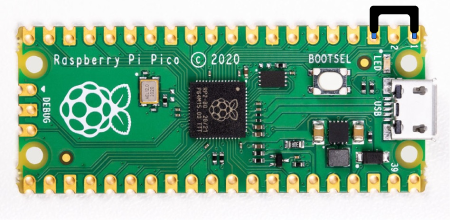
To edit the payload, enter setup mode by connecting the pin 1 (`GP0`) to pin 3 (`GND`), this will stop the pico-ducky from injecting the payload in your own machine.
The easiest way to do so is by using a jumper wire between those pins as seen bellow.
## USB enable/disable mode
If you need the pico-ducky to not show up as a USB mass storage device for stealth, follow these instructions.
- Enter setup mode.
- Copy your payload script to the pico-ducky.
- Disconnect the pico from your host PC.
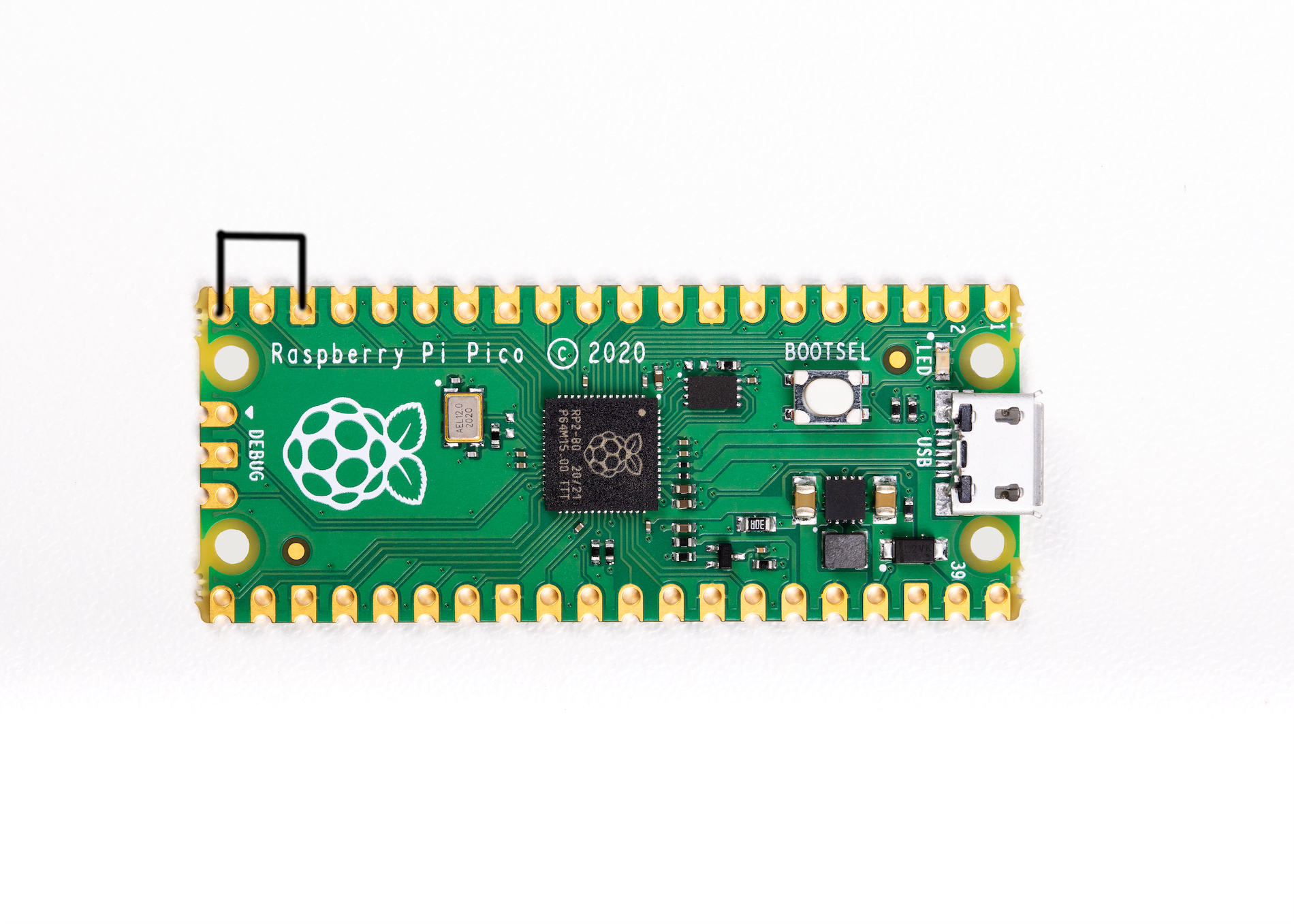
- Connect a jumper wire between pin 18 (`GND`) and pin 20 (`GPIO15`).
This will prevent the pico-ducky from showing up as a USB drive when plugged into the target computer.
- Remove the jumper and reconnect to your PC to reprogram.
Pico: The default mode is USB mass storage enabled.
Pico W: The default mode is USB mass storage **disabled**
-----
# Full Install Instructions
Install and have your USB Rubber Ducky working in less than 5 minutes.
1. Clone the repo to get a local copy of the files. `git clone https://github.com/dbisu/pico-ducky.git`
2. Download [CircuitPython for the Raspberry Pi Pico](https://circuitpython.org/board/raspberry_pi_pico/). *Updated to 9.2.1
Download [CircuitPython for the Raspberry Pi Pico W](https://circuitpython.org/board/raspberry_pi_pico_w/). *Updated to 9.2.1
Download [CircuitPython for the Raspberry Pi Pico 2](https://circuitpython.org/board/raspberry_pi_pico2/). *Updated to 9.2.1
Download [CircuitPython for the Raspberry Pi Pico 2W](https://circuitpython.org/board/raspberry_pi_pico2_w/). *Updated to 9.2.1
3. Plug the device into a USB port while holding the boot button. It will show up as a removable media device named `RPI-RP2`.
4. Copy the downloaded `.uf2` file to the root of the Pico (`RPI-RP2`). The device will reboot and after a second or so, it will reconnect as `CIRCUITPY`.
5. Download `adafruit-circuitpython-bundle-9.x-mpy-YYYYMMDD.zip` [here](https://github.com/adafruit/Adafruit_CircuitPython_Bundle/releases/latest) and extract it outside the device.
6. Navigate to `lib` in the recently extracted folder and copy `adafruit_hid` to the `lib` folder on your Raspberry Pi Pico.
7. Copy `adafruit_debouncer.mpy` and `adafruit_ticks.mpy` to the `lib` folder on your Raspberry Pi Pico.
8. Copy `asyncio` to the `lib` folder on your Pico.
9. Copy `adafruit_wsgi` to the `lib` folder on your Pico.
10. Copy `boot.py` from your clone to the root of your Pico.
11. Copy `duckyinpython.py`, `code.py`, `webapp.py`, `wsgiserver.py` to the root folder of the Pico.
12. *For Pico W Only* Create the file `secrets.py` in the root of the Pico W. This contains the AP name and password to be created by the Pico W.
`secrets = { 'ssid' : "BadAPName", 'password' : "badpassword" }`
13. Find a script [here](https://github.com/hak5/usbrubberducky-payloads) or [create your own one using Ducky Script](https://docs.hak5.org/hak5-usb-rubber-ducky/ducky-script-basics/hello-world) and save it as `payload.dd` in the Pico. Currently, pico-ducky only supports DuckyScript 1.0, and some of 3.0.
14. Be careful, if your device isn't in [setup mode](#setup-mode), the device will reboot and after half a second, the script will run.
15. **Please note:** by default Pico W will not show as a USB drive
### Pico W Web Service
The Pico W AP defaults to ip address `192.168.4.1`. You should be able to find the webservice at `http://192.168.4.1:80`
The following endpoints are available on the webservice:
```
/
/new
/ducky
/edit/
/write/
/run/
```
API endpoints
```
/api/run/
```
## Setup mode
To edit the payload, enter setup mode by connecting the pin 1 (`GP0`) to pin 3 (`GND`), this will stop the pico-ducky from injecting the payload in your own machine.
The easiest way to do so is by using a jumper wire between those pins as seen bellow.

## USB enable/disable mode
If you need the pico-ducky to not show up as a USB mass storage device for stealth, follow these instructions.
- Enter setup mode.
- Copy your payload script to the pico-ducky.
- Disconnect the pico from your host PC.
- Connect a jumper wire between pin 18 (`GND`) and pin 20 (`GPIO15`).
This will prevent the pico-ducky from showing up as a USB drive when plugged into the target computer.
- Remove the jumper and reconnect to your PC to reprogram.
Pico: The default mode is USB mass storage enabled.
Pico W: The default mode is USB mass storage **disabled**

## Multiple payloads
Multiple payloads can be stored on the Pico and Pico W.
To select a payload, ground one of these pins:
- GP4 - payload.dd
- GP5 - payload2.dd
- GP10 - payload3.dd
- GP11 - payload4.dd
## Changing Keyboard Layouts
Copied from [Neradoc/Circuitpython_Keyboard_Layouts](https://github.com/Neradoc/Circuitpython_Keyboard_Layouts/blob/main/PICODUCKY.md)
#### How to use one of these layouts with the pico-ducky repository.
**Go to the [latest release page](https://github.com/Neradoc/Circuitpython_Keyboard_Layouts/releases/latest), look if your language is in the list.**
#### If your language/layout is in the bundle
Download the `py` zip, named `circuitpython-keyboard-layouts-py-XXXXXXXX.zip`
**NOTE: You can use the mpy version targetting the version of Circuitpython that is on the device, but on Raspberry Pi Pico you don't need it - they only reduce file size and memory use on load, which the pico has plenty of.**
#### If your language/layout is not in the bundle
Try the online generator, it should get you a zip file with the bundles for yout language
https://www.neradoc.me/layouts/
#### Now you have a zip file
#### Find your language/layout in the lib directory
For a language `LANG`, copy the following files from the zip's `lib` folder to the `lib` directory of the board.
**DO NOT** modify the adafruit_hid directory. Your files go directly in `lib`.
**DO NOT** change the names or extensions of the files. Just pick the right ones.
Replace `LANG` with the letters for your language of choice.
- `keyboard_layout_win_LANG.py`
- `keycode_win_LANG.py`
Don't forget to get [the adafruit_hid library](https://github.com/adafruit/Adafruit_CircuitPython_HID/releases/latest).
This is what it should look like **if your language is French for example**.

#### Modify the pico-ducky code to use your language file:
At the start of the file comment out these lines:
```py
from adafruit_hid.keyboard_layout_us import KeyboardLayoutUS as KeyboardLayout
from adafruit_hid.keycode import Keycode
```
Uncomment these lines:
*Replace `LANG` with the letters for your language of choice. The name must match the file (without the py or mpy extension).*
```py
from keyboard_layout_win_LANG import KeyboardLayout
from keycode_win_LANG import Keycode
```
##### Example: Set to German Keyboard (WIN_DE)
```py
from keyboard_layout_win_de import KeyboardLayout
from keycode_win_de import Keycode
```
Copy the files keyboard_layout_win_de.mpy and keycode_win_de.mpy to the /lib folder on the Pico board
```
adafruit_hid/
keyboard_layout_win_de.mpy
keycode_win_de.mpy
```
## Useful links and resources
### How to recover your Pico if it becomes corrupted or doesn't boot.
[Reset Instructions](RESET.md)
### Installation Tool
[ryo-yamada](https://github.com/ryo-yamada) Created a tool to convert a blank RPi Pico to a ducky.
You can find the tool [here](https://github.com/ryo-yamada/PicoDuckyBuilder)
### Docs
[CircuitPython](https://circuitpython.readthedocs.io/en/6.3.x/README.html)
[CircuitPython HID](https://learn.adafruit.com/circuitpython-essentials/circuitpython-hid-keyboard-and-mouse)
[Ducky Script](https://github.com/hak5darren/USB-Rubber-Ducky/wiki/Duckyscript)
### Video tutorials
[pico-ducky tutorial by **NetworkChuck**](https://www.youtube.com/watch?v=e_f9p-_JWZw)
[USB Rubber Ducky playlist by **Hak5**](https://www.youtube.com/playlist?list=PLW5y1tjAOzI0YaJslcjcI4zKI366tMBYk)
[CircuitPython tutorial on the Raspberry Pi Pico by **DroneBot Workshop**](https://www.youtube.com/watch?v=07vG-_CcDG0)
## Related Projects
[Defcon31-ducky](https://github.com/iot-pwn/defcon31-ducky)
There are still a few of these available to purchase, US only.